Documents & ID
Aadhaar to PDF Converter
Place the front and back of an Aadhaar card on one PDF page, as portals expect.
- No sign-up
- Files never uploaded
- No watermark
- Up to 100 files
Add your imagesDrop your images here
Add the front and back of each card. Each pair is placed on one page. Nothing is uploaded.
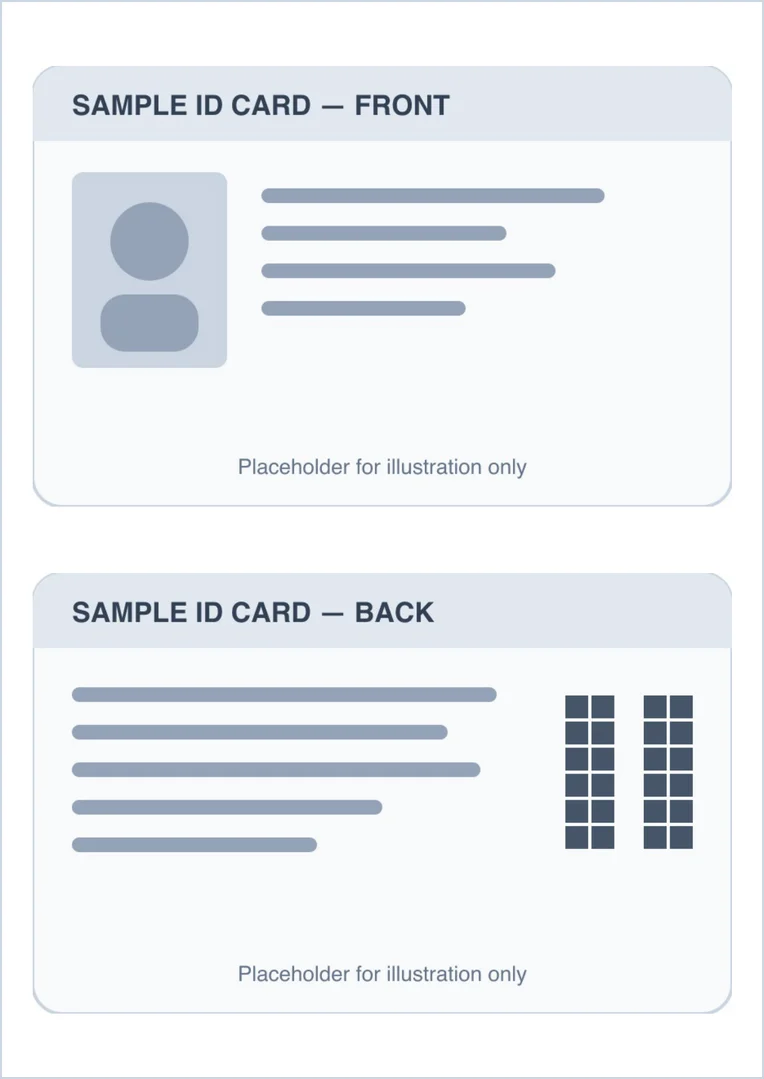
Pages stack front above back, two images per sheet. Add images in the order you want them paired.
Overview
Aadhaar is a 12-digit identity number issued by UIDAI, the Unique Identification Authority of India, and the card carries a photograph and a QR code on the front with the address and a second QR code on the reverse. Most portals and forms that ask for an Aadhaar copy want both sides in a single PDF file rather than two separate images, which is the problem this tool solves: it places your front and back photographs on one A4 page instead of sending two attachments.
Why both sides have to be in one PDF
An application form typically has one upload field for an Aadhaar card. Submitting a front and a back as separate images leaves the portal with no way to order them, and many forms reject multi-file uploads outright. Putting both photographs on one PDF page satisfies the single-file requirement and keeps the two halves of the card visibly paired.
A single PDF also survives email and messaging without either image being recompressed or reordered, which matters because the reverse side carries the address and the QR code that some verification checks read.
How to place both sides on one page
Add your front-side image first, then the reverse. The tool pairs them in the order you add them: the first image is placed in the upper half of the page and the second directly below it, each scaled to fit its half while keeping its aspect ratio.
If you have more than one card to submit, keep adding images in pairs — each pair produces its own PDF page. An odd number of images leaves the final page with one image on it, which is expected behaviour rather than an error.
What this tool does not do
It does not read, crop, straighten or verify the card. Your photographs are placed on the page exactly as supplied, so if a side is blurry, rotated or cut off, the PDF will be too. It is a layout tool, not a document scanner.
It also does not decode PDFs. If you already hold the e-Aadhaar PDF from the UIDAI portal, you do not need a converter at all — submit that file directly. Use this tool when what you have are photographs of the card, which is the situation that actually needs combining.
How to convert Aadhaar to PDF
Add the front image
Drop the front-side photograph of your Aadhaar card onto the drop area, or press Add files to browse. It appears as the upper image on the page.
Add the back image
Add the reverse-side photograph second. The pair is placed on one PDF page with the front above the back.
Choose the page size
A4 is the default and suits Indian portals. Leave the margin at Medium so neither image sits against the page edge.
Convert and download
Press Convert. Each pair of images produces one PDF page, and the finished PDF downloads to your device.
If your e-Aadhaar PDF is password protected
The e-Aadhaar PDF downloaded from UIDAI is encrypted, and its password is formed from the first four letters of your name in capitals followed by your year of birth. That file is already in the format portals ask for, so it should be uploaded as-is rather than converted.
Frequently asked questions
Are my Aadhaar images uploaded to a server?
No. The images are decoded and the PDF assembled inside your browser. Nothing is transmitted, which you can verify by adding your files, disconnecting from the internet, and converting.
How do I get the front and back on one page?
Add both images to the same conversion. The first image is placed in the upper half of the PDF page and the second in the lower half, in the order you added them.
Can I submit multiple Aadhaar cards in one PDF?
Yes. Add images in pairs and each pair becomes its own PDF page. If you add an odd number, the last page holds a single image.
Does the tool crop or straighten my card?
No. It places the images you supply on the page without editing them. If the card is blurry, rotated or cut off in the photograph, the PDF will show the same. Photograph the card flat, in even light, filling most of the frame.
Should I convert my e-Aadhaar PDF?
No. The e-Aadhaar PDF from the UIDAI portal is already the format portals ask for. Upload it directly — its password is the first four letters of your name in capitals plus your year of birth.
What page size should I use?
A4. It is what Indian government and banking portals expect. US Letter is available but is 8.5 × 11 inches, which is slightly shorter and wider than A4.
How do I get the PDF under a portal’s size limit?
Open File size and choose a target, for example Under 200 KB or Under 500 KB. The tool lowers JPEG quality and then resolution until the whole PDF fits, and tells you if it cannot. Pick the largest target the portal allows so the text and QR code stay legible.
Will the PDF be legible?
The images keep their original pixels, so legibility depends on your photographs. Each gets half an A4 page, roughly 88 mm of usable width, so a photo taken at arm’s length on a current phone is comfortably readable.
Guide
- How to put Aadhaar front and back in one PDF
Many forms want both sides of an Aadhaar card in a single PDF. If you already have the e-Aadhaar PDF from UIDAI, you may not need to make one at all. If you only have photos of the card, this guide shows how to place front and back on one page without sending the images to anyone.
Related converters
- PAN card to PDFProduce PAN application photo and signature pages at the published sizes.
- Passport Photo to PDFLay passport photographs out at 35 × 45 mm or 2 × 2 in on a PDF page.
- Image to PDFEvery supported image format into one PDF, in the order you choose.
- JPG to PDF under 200 KBCombine photos or scanned pages into one PDF under 200 KB, sized in a single step.