Documents & ID
JPG to PDF Under 50 KB
Fit a photo or a single document page into a PDF under 50 KB for strict upload limits.
- No sign-up
- Files never uploaded
- No watermark
- Up to 100 files
Add JPG filesDrop JPG files here
Up to 100 pages, 200 MB per file. Nothing is uploaded.
Page size and margin apply to output pages. A file-size target re-encodes images as JPEG to fit; leave it on Original to keep every pixel. Your originals are never modified.
Overview
50 KB is a strict limit. It is enough for a photograph or for one tightly cropped document, and not much more. This page has the File size target preset to Under 50 KB and is honest about what that costs, because the most common failure at this size is not an error message but a PDF that technically fits and cannot be read.
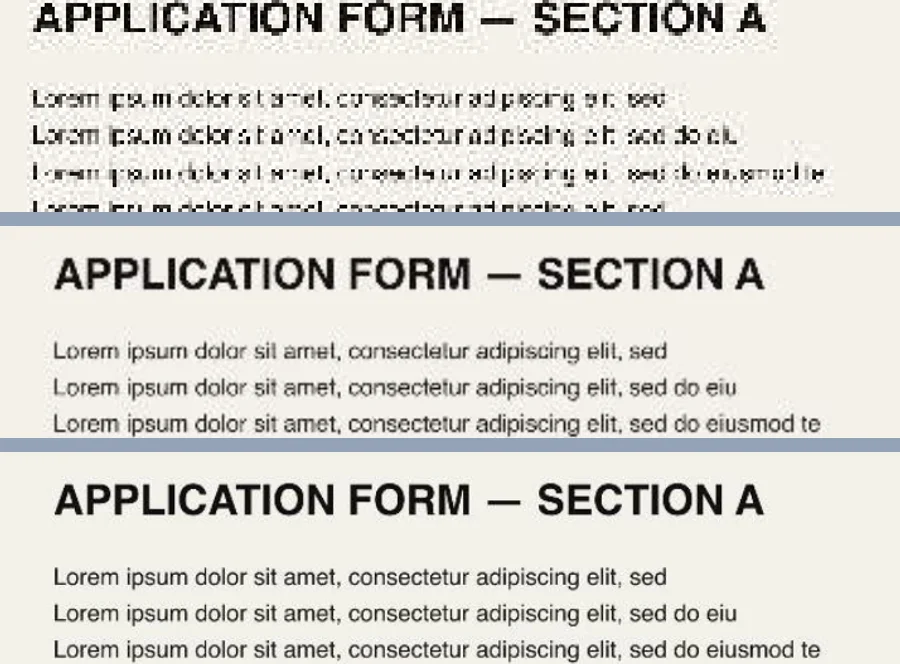
What 50 KB can and cannot hold
Measured with this converter: a 12-megapixel photograph fitted into 49 KB at 846 × 634 pixels, which is fine for a face or an object. A full A4 document scan fitted at 416 × 589 pixels, about 50 pixels per inch — headings stayed readable, but normal body text broke up.
Two A4 pages in 50 KB dropped to 266 × 377 pixels each, which is not usable for text. At this size, one page per file is the rule, not a preference.
Crop first: the single biggest improvement
The size budget is spent on every pixel in the image, including the table the paper was lying on. Cropping a phone photo of a card or certificate down to the document itself lets the same 50 KB carry far more detail where it matters.
Turn off the page margin as well. With No margin, the image fills the page, so none of the page area is spent on empty border that the reviewer will never look at.
When 50 KB is the wrong target
If a form allows 100 KB or more, use that: in our tests a full A4 scan went from barely legible at 50 KB to readable at 100 KB. A size limit is a maximum, not a goal, and a reviewer who cannot read a document is likely to reject it.
For a photograph that must also meet a physical size, such as a passport or PAN photo, use the document tools for those sizes and choose Under 50 KB in their File size option.
How to convert JPG to PDF under 50 KB
Crop the image
Crop the photo or scan to just the document or face before adding it. It gives the 50 KB budget far more detail to work with.
Add one image
Drop the image onto the drop area or press Add files. One page per file gives the best result at this size.
Convert
File size is preset to Under 50 KB and the margin to No margin. Press Convert to build the PDF.
Read it back
Open the PDF and zoom in. If the text is not readable, crop tighter or use a larger size if the form allows it.
Frequently asked questions
Can a full document page be readable at 50 KB?
Headings, yes; small body text, barely. In our test a full A4 scan fitted at 416 × 589 pixels, about 50 pixels per inch. Cropping to the text area makes a large difference.
Can I put two pages in a 50 KB PDF?
It will fit, but each page drops to around 266 × 377 pixels, which is too small for text. Make one PDF per page instead.
Is a photo fine at 50 KB?
Yes. A 12-megapixel photo came out at 846 × 634 pixels in 49 KB, which is clear for a face or an object on screen.
Why is the margin set to none?
Any border is space the reviewer does not need. With no margin the image fills the page, which makes the most of the small size budget.
Is my file uploaded?
No. Conversion and compression run entirely in your browser; nothing is sent anywhere.
What should I do if the PDF is unreadable?
Crop tighter so the document fills the image, use one page per file, or choose 100 KB if the form allows it.
Related converters
- JPG to PDF under 100 KBMake a PDF under 100 KB from photos or scans in one step, for forms with an upload limit.
- JPG to PDF under 200 KBCombine photos or scanned pages into one PDF under 200 KB, sized in a single step.
- PAN card to PDFProduce PAN application photo and signature pages at the published sizes.
- Passport Photo to PDFLay passport photographs out at 35 × 45 mm or 2 × 2 in on a PDF page.