Guide
How to convert HEIC to PDF on Windows
iPhones save photos as HEIC, and Windows cannot open them without extra codecs. Here are three ways to get a PDF: convert in the browser with nothing installed, install Microsoft’s HEIF and HEVC extensions and print to PDF, or set the iPhone to save JPEG in future.
By PNG to PDF Tools · Published · Last reviewed
Why Windows cannot open HEIC photos
HEIC is Apple’s name for photos stored in the HEIF format, with the image compressed using the HEVC codec. iPhones and iPads that support it save photos this way by default, because the files are much smaller than JPEG at similar quality.
Many Windows PCs cannot open HEIC out of the box, because the HEVC decoder is not always installed. Microsoft’s support page for the Photos app says that to open HEIF and HEVC files you need two Microsoft Store add-ons — HEIF Image Extensions, which is free, and HEVC Video Extensions, listed at $0.99 — and that “you’ll need both, even if you only plan on using photos and not videos.”
Method 1: convert in the browser (nothing to install)
The HEIC to PDF converter on this site decodes HEIC inside the browser. In Safari it uses the built-in decoder; in Chrome, Edge and Firefox, which cannot decode HEIC on Windows, it loads its own decoder (libheif compiled to WebAssembly, about 2 MB the first time). The photo is never sent to a server.
- 1
Copy the photos to the PC
Transfer the HEIC files from the iPhone by cable, OneDrive, email or any other method you already use.
- 2
Open the HEIC to PDF page
Open the converter in Chrome, Edge, Firefox or any other current browser.
- 3
Add the photos
Drop the files onto the page or press Add files. Several photos can be added at once and reordered.
- 4
Choose page size and, if needed, a file size
Match image keeps each photo’s shape; A4 or US Letter gives paper-sized pages. If a form has an upload limit, set File size before converting.
- 5
Convert and save
Press Convert. The PDF downloads to your usual Downloads folder.
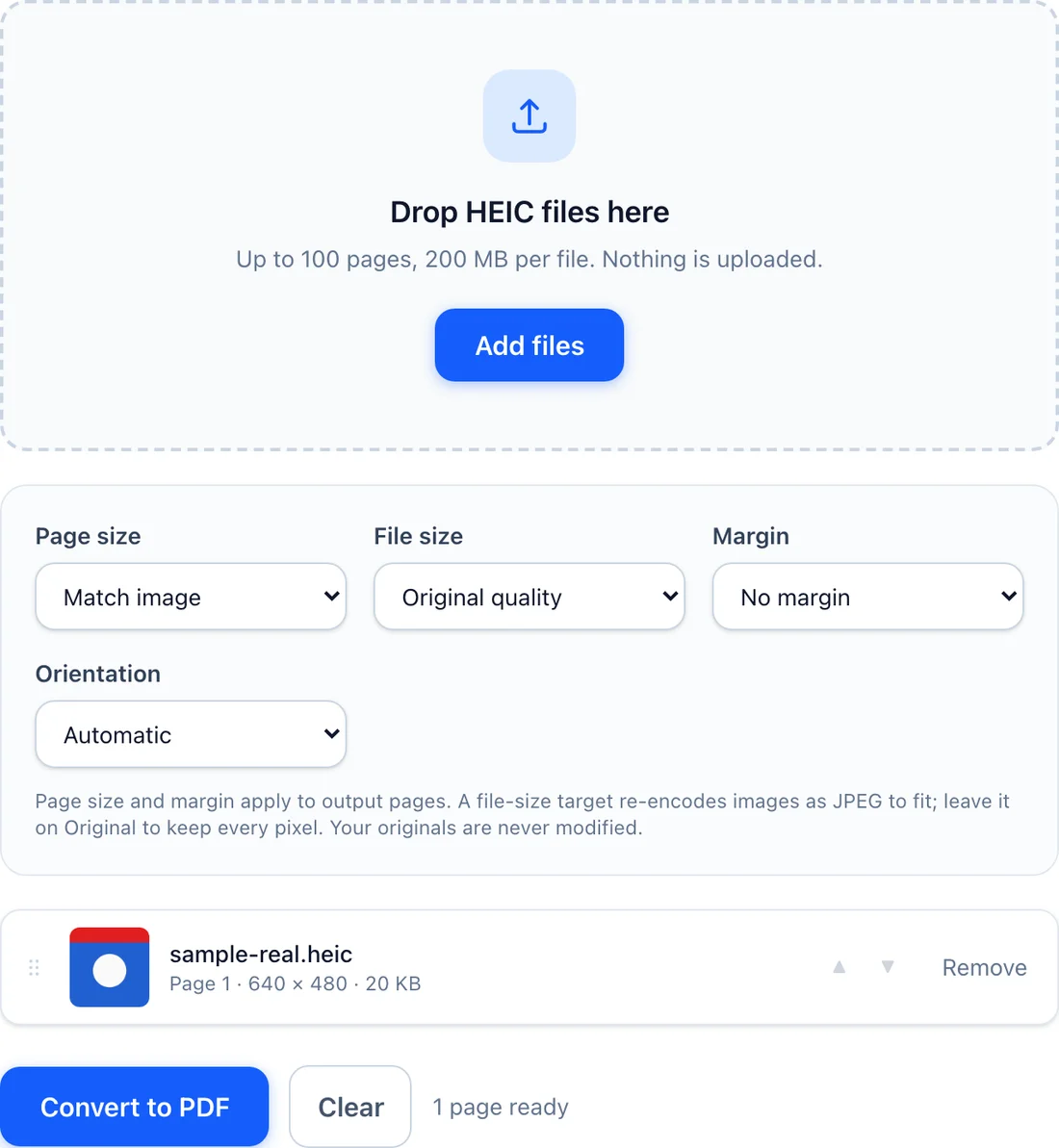
Best for: several photos into one PDF, PCs where you cannot install software, and photos you would rather not upload anywhere.
Method 2: Microsoft’s extensions and Microsoft Print to PDF
Once both extensions are installed, the Windows Photos app can open HEIC files, and Windows’ built-in Microsoft Print to PDF printer can save what Photos displays as a PDF.
- 1
Install the extensions
Install HEIF Image Extensions and HEVC Video Extensions from the Microsoft Store, then restart the Photos app.
- 2
Open the photo
Open the HEIC file in Photos.
- 3
Print to PDF
Press Ctrl+P, choose Microsoft Print to PDF as the printer, set the paper size, and print.
- 4
Save the file
Choose a folder and file name when Windows asks where to save the PDF.
Best for: occasional single photos on your own PC, if you are happy to install the extensions.
Method 3: stop the iPhone saving HEIC
Apple documents a setting that makes the camera save JPEG instead: Settings > Camera > Formats > Most Compatible. It only affects photos taken after the change; existing HEIC photos stay HEIC.
Apple also notes that HEIF media imported from an attached iPhone or iPad into a PC “may be converted to JPEG”, and Microsoft suggests emailing photos to yourself or using OneDrive, which can convert them. Results depend on the transfer method, so check the file extension after copying.
Best for: avoiding the problem in future, if you do not need the smaller HEIC files.
The three methods compared
| Method | Cost | Installs needed | Several photos in one PDF | Photo leaves the PC |
|---|---|---|---|---|
| Browser converter (this site) | Free | None | Yes | No |
| Photos + Microsoft Print to PDF | HEVC extension listed at $0.99 | Two Store extensions | Not designed for combining photos | No |
| iPhone set to Most Compatible | Free | None | Not applicable (makes JPEG) | Depends on transfer method |
If a HEIC file will not convert
- Check the extension really is .heic or .heif. Files renamed from another format will not decode.
- Re-copy the file. A transfer that was interrupted leaves a truncated file that no decoder can read.
- Live Photos are a still image plus a short video. The converter uses the still image.
- Burst and multi-image HEIC files contain several images; the converter uses the first one.
Sources
- Photos app error: Can’t view this file type (HEIF and HEVC extensions) — Microsoft Support
- HEIF Image Extension — Microsoft Store
- Using HEIF or HEVC media on Apple devices — Apple Support
Official requirements change. This guide was checked against the sources above on 12 October 2026; where a form you are filling in states something different, follow the form. Figures about this site’s own output were measured with the converter itself, as described on how it works.