Guide
PAN card photo and signature size
Online PAN applications through Protean (formerly NSDL e-Gov) ask for a photograph and signature at stated sizes, resolutions and file sizes. This guide sets out the published figures, shows where Protean’s own pages differ, and converts them into pixels.
By PNG to PDF Tools · Published · Last reviewed
The published specifications
Protean’s guidelines for the DSC-based online PAN application list the following for scanned images:
| Item | Dimensions | Resolution | Colour | Format | Maximum size |
|---|---|---|---|---|---|
| Photograph | 3.5 × 2.5 cm | 200 DPI | Colour | JPEG | 20 KB |
| Signature | 2 × 4.5 cm | 200 DPI | Colour | JPEG | 10 KB |
| Supporting documents | Not specified | 200 DPI | Black and white | PDF/A or JPEG | 300 KB per page |
Where Protean’s pages disagree
A separate Protean article on scanning and uploading PAN documents gives a maximum of 50 KB for both the photograph and the signature, and lists the photograph as “5 cm x 2.5 cm” while the same article’s signature figure (2 cm × 4.5 cm) matches the guidelines above. The two pages also describe different application routes.
Because the upload form enforces whichever rule applies to your route, the practical approach is to meet the stricter figures — 3.5 × 2.5 cm, 200 DPI, at most 20 KB for the photo and 10 KB for the signature — which also satisfy the looser ones. The upload page itself is the final authority; if it states a different limit, follow it.
The sizes in pixels
At 200 DPI, one centimetre is 200 ÷ 2.54 ≈ 78.7 pixels. Rounded to whole pixels:
| Item | Centimetres | Pixels at 200 DPI |
|---|---|---|
| Photograph (3.5 cm tall, 2.5 cm wide) | 3.5 × 2.5 | 276 tall × 197 wide |
| Signature (2 cm tall, 4.5 cm wide) | 2 × 4.5 | 157 tall × 354 wide |
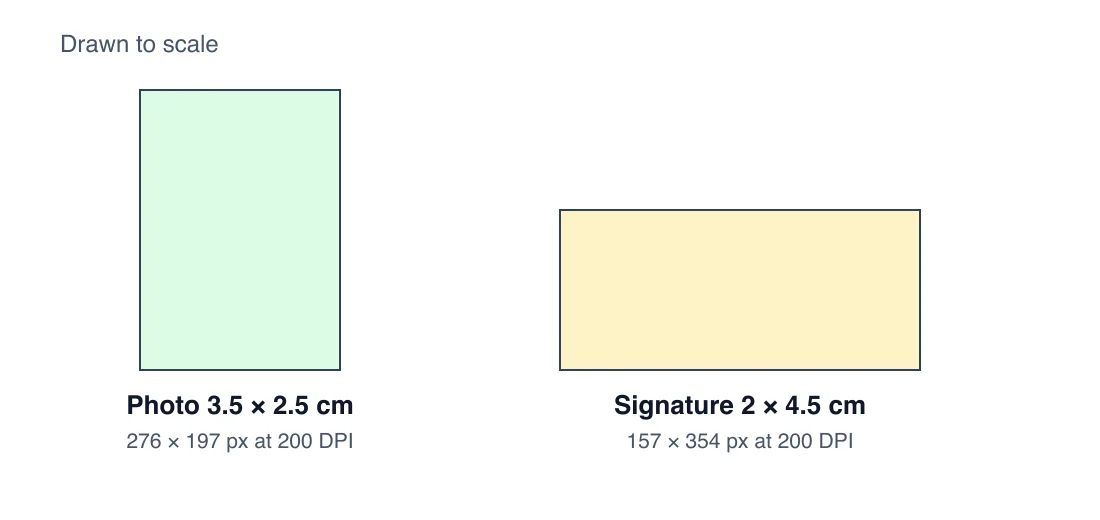
In our test, a photograph resized to 197 × 276 pixels was 11 KB as a JPEG at 85% quality (about 20 KB at 95%), and a signature at 354 × 157 pixels was 4 KB. Phone photos are thousands of pixels across, which is why they are rejected: they need cropping and resizing first, not just compressing.
What “200 DPI” does and does not mean
DPI is a number stored inside the image file that tells a printer how large to print it. It does not change the pixels themselves: a 197 × 276 pixel photo tagged 72 DPI and the same photo tagged 200 DPI look identical on screen and have almost the same file size. What makes a photo the right size at 200 DPI is its pixel count, which is why the table above gives pixels.
Making the JPEG files yourself
- Windows: open the image in Paint, crop it to the head and shoulders or to the signature, then use Resize, choose Pixels, and enter the width and height. Save as JPEG.
- Mac: open the image in Preview, crop it, use Tools > Adjust Size to set the pixel dimensions, then File > Export as JPEG; the Quality slider shows the resulting file size.
- Phone: crop with the built-in photo editor, then check the file’s pixel size and KB in its details before uploading.
- Whichever you use, check the final file size in KB — in File Explorer’s Properties on Windows, or Get Info on a Mac — against the limit before uploading.
JPEG fields and PDF fields are different
The photograph and signature fields above ask for JPEG files. The PAN tool on this site produces PDF pages at the published physical sizes, which suits forms and offices that ask for a PDF; it does not produce the 20 KB and 10 KB JPEG files for the online upload fields. Its smallest File size target is 50 KB.
Supporting documents are different: they may be PDF, up to 300 KB per page. For a one-page document, the Under 200 KB target keeps it well inside that limit.
Photograph and signature: practical checks
- Use a recent colour photograph against a plain light background, cropped to head and shoulders.
- Sign on plain white paper with a dark pen, and crop tightly around the signature before resizing.
- Check the final file’s pixel dimensions and size in KB before uploading; most image viewers show both.
Sources
- Guidelines for filling PAN New Application (DSC-based online application) — Protean eGov Technologies
- Documents for scanned PAN card application — Protean eGov Technologies
Official requirements change. This guide was checked against the sources above on 12 October 2026; where a form you are filling in states something different, follow the form. Figures about this site’s own output were measured with the converter itself, as described on how it works.